Restrict Users from Modifying Guest Profiles
Stay is enhanced to allow only authorized users to modify guest profiles when associated with a loyalty program or when the profile is linked to one or more active reservations. Users are restricted from modifying the guest name and adding/modifying the contact information in guest profiles.
Permissions
The following new permissions must be assigned to use this feature.
|
Field |
Description |
Permissions Assigned |
|---|---|---|
|
Stay_GuestProfileFieldAddEdit |
Users with this permission assigned can edit the restricted fields and add contact details in a guest profile. |
|
|
Stay_GuestProfileFieldConfiguration |
Users with this permission assigned can configure restricted fields for a guest profile. |
|
|
Stay_GuestProfileFieldDelete |
Users with this permission assigned can delete the restricted fields configured for a guest profile. |
|
To support this enhancement, a new tab, Guest Profile Restrictions, has been added to the Profile Settings screen (All Settings ➜ General ➜ Profile Settings). A new section, Field Edit Restrictions, has been added to this tab. Additionally, the following existing sections from the Guest Profile Defaults section has been moved to this tab:
-
Hidden Sections
-
Hidden Personal Details
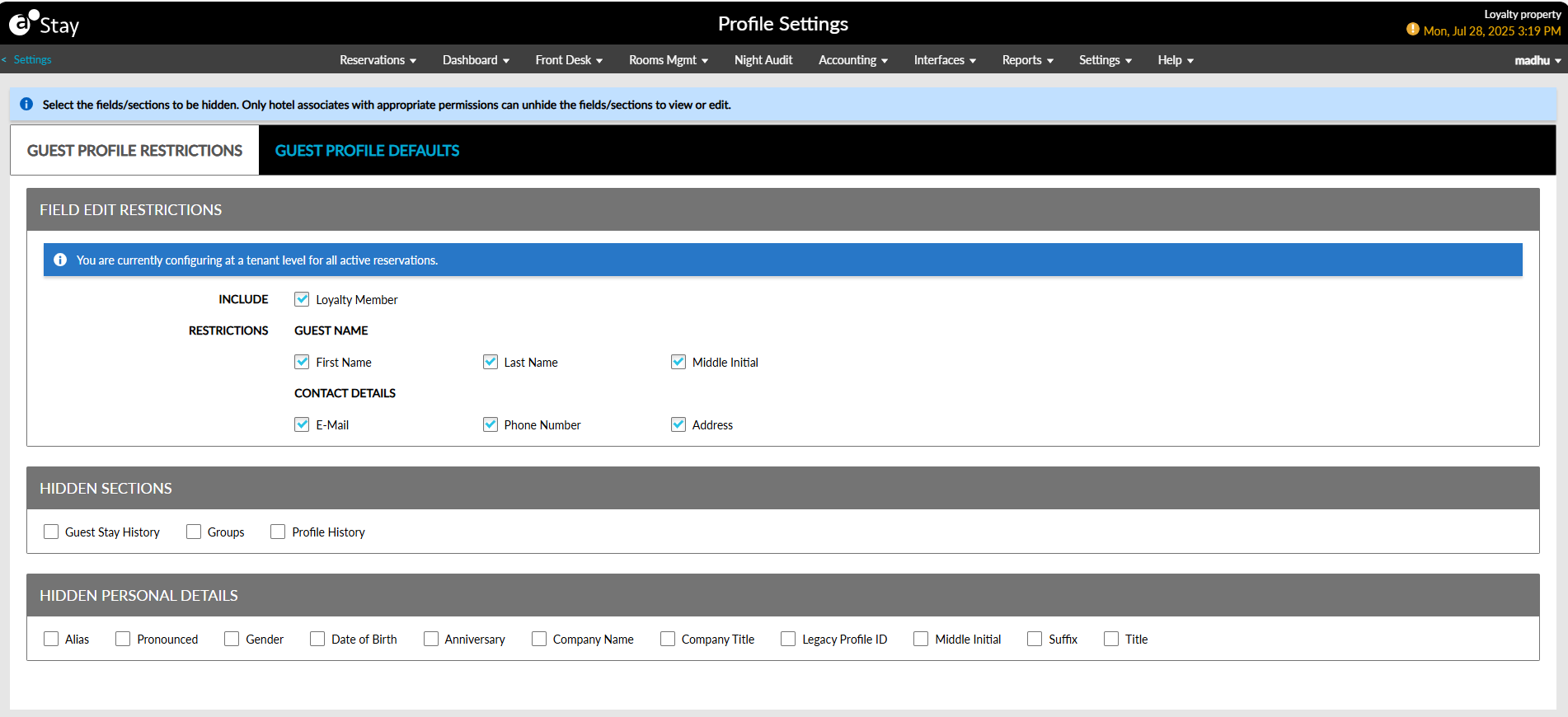
Field Edit Restrictions
The Field Edit Restrictions section allows users to select the guest name and contact details fields to be restricted from being modified. The following message is displayed in this section: You are currently configuring at the tenant level for guest profiles with active reservations. The following fields are displayed in this section:
-
Include - Loyalty Member
-
Restrictions - Guest Name
-
First Name
-
Last Name
-
Middle Initial
-
-
Restrictions - Contact Details
-
E-Mail
-
Phone Number
-
Address
-
Include Loyalty Member
The Loyalty Member checkbox is not selected by default. When this checkbox is not selected, users without permission are restricted from modifying the guest name and contact details of guest profiles without loyalty programs that are associated with one or more active reservations. When the guest profile is not associated with active reservations, users are allowed to modify the guest name and contact details.
When this checkbox is selected, users without permission are restricted from modifying the guest name and contact details of guest profiles with loyalty programs that are associated with one or more active reservations. The following message is displayed to users: Guest name and/or contact details cannot be edited as the profile has a loyalty member id and associated with one or more active reservation. When the guest profile is not associated with any active reservations, the following message is displayed: Guest name and/or contact details cannot be edited as the profile has a loyalty member id.
When this checkbox is selected and a guest profile does not have a loyalty program but is associated with active reservations, users without permission are restricted from modifying the guest name and contact details and the following message is displayed: Guest name and/or contact details cannot be edited as the profile is associated with one or more active reservation.
When there is no member number on a local profile and local profile is not associated to one or more active reservation (Arriving or In-House or Reserved), then the user is not restricted to edit the guest name and contact information.
Restrictions - Guest Name and Contact Details
This section allows users to select the guest name and contact details fields to be restricted from being modified. Users can select from the following guest name fields:
-
First Name
-
Last Name
-
Middle Initial
The following contact details fields can be selected:
-
E-Mail
-
Phone Number
-
Address
The selected fields cannot be modified by users without permission assigned.
List of Impacted Areas
The fields selected in the Field Edit Restrictions section cannot be modified by users without the Stay_GuestProfileFieldAddEdit permission assigned in the following areas:
-
Guest Profiles
-
Associate to a Guest Profile pop-up screen
-
Guest Information section of the Book a Reservation screen
-
Add a Contact pop-up screen when users add a contact for a group (Group ➜ Group Booking ➜ Group Contacts ➜ Add ➜ Search for a guest).
-
Guest Information section of the Book a Reservation screen when creating reservations for groups.
-
Add a Contact pop-up screen when users add a contact for a linked group (Group ➜ Linked Groups ➜ Select group ➜ Group Booking ➜ Group Contacts ➜ Add ➜ Search for a guest).
-
Add pop-up screen that appears when users add a contact for a travel agent profile (Travel agent profile ➜ Contacts ➜ Add ➜ Search for a guest).
-
Add a Contact pop-up screen that appears when users add a contact for a company profile (Company profile ➜ Contacts ➜ Add ➜ Search for a guest).
-
Profile Details section of the Add Waitlist/Inquiry pop-up screen (Reservations ➜ Waitlist and Inquiry ➜ Add).
-
Booker tab of the Book a Reservation screen when modifying booker profile details for reservations
List of Fields Restricted in the Impacted Areas
Guest Profiles
The following fields are greyed out and displayed:
-
First Name
-
Last Name
-
Middle Initial
-
Email Addresses section
-
Type
-
Address
-
Use this Email
-
Others
-
-
Phone Numbers section
-
Type
-
Number
-
Extension
-
Use This Phone
-
Others
-
-
Address section
Associate to a Guest Profile
The following fields are greyed out in the Associate to a Guest Profile pop-up screen that appears when users select the Associate to a Different Profile hyperlink in the Guest Information section of reservations.
-
First Name
-
Last Name
-
Middle Initial
-
Contact section
-
Phone
-
Phone Type
-
Extension
-
Email
-
Email Type
-
-
Address section
Book a Reservation
The following fields are greyed out in the Guest Information section of the Book a Reservation screen when users select the Edit Profile hyperlink.
-
First Name
-
Last Name
-
Middle Initial
-
Contact section
-
Phone
-
Phone Type
-
Extension
-
Email
-
Email Type
-
-
Address section
Add Contacts for Groups
The following fields are greyed out and displayed in the Add a Contact pop-up screen when users add a contact for a group (Group ➜ Group Booking ➜ Group Contacts ➜ Add ➜ Search for a guest):
-
First Name
-
Last Name
-
Middle Initial
-
Contact section
-
Phone
-
Phone Type
-
Extension
-
Email
-
Email Type
-
-
Address section
Create Reservations for Groups
The following fields are greyed out and displayed in the Guest Information section of the Book a Reservation screen when users search for a guest profile to create reservations for groups (Group ➜ Group Booking ➜ More ➜ Make Reservation ➜ Book a Reservation ➜ Guest Information ➜ Search for a guest):
-
First Name
-
Last Name
-
Middle Initial
-
Contact section
-
Phone
-
Phone Type
-
Extension
-
Email
-
Email Type
-
-
Address section
Add Contacts for Link Groups
The following fields are greyed out and displayed in the Add a Contact pop-up screen when users add a contact for a linked group (Group ➜ Linked Groups ➜ Select group ➜ Group Booking ➜ Group Contacts ➜ Add ➜ Search for a guest):
-
First Name
-
Last Name
-
Middle Initial
-
Contact section
-
Phone
-
Phone Type
-
Extension
-
Use This Phone
-
Email
-
Email Type
-
-
Address section
Add Contacts for Travel Agent Profiles
The following fields are greyed out and displayed in the Add pop-up screen that appears when users add a contact for a travel agent profile (Travel agent profile ➜ Contacts ➜ Add ➜ Search for a guest):
-
First Name
-
Last Name
-
Middle Initial
-
Contact section
-
Phone
-
Phone Type
-
Extension
-
Use This Phone
-
Email
-
Email Type
-
-
Address section
Add Contacts for Company Profiles
The following fields are greyed out and displayed in the Add a Contact pop-up screen that appears when users add a contact for a company profile (Company profile ➜ Contacts ➜ Add ➜ Search for a guest):
-
First Name
-
Last Name
-
Middle Initial
-
Contact section
-
Phone
-
Phone Type
-
Extension
-
Use This Phone
-
Email
-
Email Type
-
-
Address section
Creating Waitlist/Inquiry Records
The following fields are greyed out and displayed in the Profile Details section of the Add Waitlist/Inquiry pop-up screen (Reservations ➜ Waitlist and Inquiry ➜ Add):
-
Last Name
-
First Name
-
Email
-
Phone Number
Modify Booker Profile Details for Reservations
The following fields are greyed out and displayed in the Booker tab of the Book a Reservation screen when users select a guest profile and click on the Edit Profile hyperlink:
-
Last Name
-
First Name
-
Email
-
Phone
Users without the Stay_GuestProfileFieldAddEdit permission assigned are restricted from adding additional contact details to guest profiles such as phone numbers, email addresses, and addresses. Users without the Stay_GuestProfileFieldDelete permission assigned are restricted from deleting the contact details of guest profiles.
Users with the Stay_GuestProfileFieldAddEdit permission assigned can modify the restricted fields configured for guest profiles. The message, This profile is associated with an active reservations and/or loyalty program. Modifying the guest name or contact information could affect the reservation & loyalty. Proceed with caution, is displayed when users modify the restricted fields in the mentioned areas.